

Dans ce guide, nous allons vous montrer comment calibrer l’écran tactile ESP32 Cheap Yellow Display (CYD). Cette méthode d’étalonnage s’applique également à d’autres écrans tactiles. Nos codes sont compatibles uniquement avec les écrans tactiles résistifs.
Remarque : cette procédure a été testée avec l’écran jaune bon marché ESP32 (ESP32-2432S028R) et l’écran tactile LCD TFT ILI9341 de 2,8 pouces, mais peut être appliquée à différents écrans tactiles avec quelques modifications dans les croquis.
Aperçu rapide
La plupart du temps, votre écran tactile peut ne pas être calibré avec précision par défaut et c’est normal.
Habituellement, les axes x et y ne sont déviés que de quelques pixels et cela ne sera pas perceptible lors de l’utilisation de widgets plus grands comme de gros boutons par exemple. Cependant, lorsqu’une plus grande précision est requise, comme lors de l’utilisation d’un clavier doté de touches plus petites, l’étalonnage est un aspect critique.
La méthode d’étalonnage
Dans cette unité, nous allons vous montrer comment calibrer votre écran tactile à l’aide de la méthodologie décrite dans le document suivant :
Le croquis Arduino que nous utiliserons a été adapté du code développé par l’un de nos lecteurs, Robert Fleming. Vous pouvez vérifier son travail original.
L’étalonnage de l’écran tactile consiste à déterminer les valeurs de six coefficients différents qui seront ensuite utilisés dans des équations d’étalonnage pour déterminer la valeur réelle des coordonnées (x, y).
Conditions préalables
Avant de continuer, assurez-vous de suivre les conditions préalables suivantes.
Nouveau sur la carte ESP32 CYD ? Commencez ici avec l’écran jaune bon marché ESP32.
1) Nous utiliserons la bibliothèque LVGL pour la procédure d’étalonnage. Assurez-vous de configurer correctement les bibliothèques LVGL, TFT_eSPI et XPT2046_Touchscreen, comme expliqué dans l’un des didacticiels suivants :
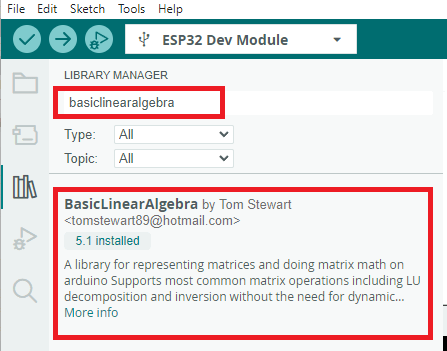
2) Pour calculer et déterminer les valeurs des coefficients d’étalonnage, vous devrez installer la bibliothèque BasicLinearAlgebra.
Dans l’IDE Arduino, accédez à Sketch > Bibliothèque > Inclure les bibliothèques. Recherchez BasicLinearAlgebra et installez la bibliothèque de Tom Stewart. Nous avons testé le croquis en utilisant la bibliothèque version 5.1.
Le croquis d’étalonnage
Exécutez le code suivant sur votre tableau.
/*
    Example created by Robert (Chip) Fleming for touchscreen calibration (https://github.com/CF20852/ESP32-2432S028-Touchscreen-Calibration)
    Rui Santos & Sara Santos - Raspberryme.com - https://Raspberryme.com/touchscreen-calibration/
    THIS EXAMPLE WAS TESTED WITH THE FOLLOWING HARDWARE:
    1) ESP32-2432S028R 2.8 inch 240×320 also known as the Cheap Yellow Display (CYD): https://makeradvisor.com/tools/cyd-cheap-yellow-display-esp32-2432s028r/
      SET UP INSTRUCTIONS: https://Raspberryme.com/cyd-lvgl/
    2) REGULAR ESP32 Dev Board + 2.8 inch 240x320 TFT Display: https://makeradvisor.com/tools/2-8-inch-ili9341-tft-240x320/ and https://makeradvisor.com/tools/esp32-dev-board-wi-fi-bluetooth/
      SET UP INSTRUCTIONS: https://Raspberryme.com/esp32-tft-lvgl/
    Permission is hereby granted, free of charge, to any person obtaining a copy of this software and associated documentation files.
    The above copyright notice and this permission notice shall be included in all copies or substantial portions of the Software.
*/

/*  Install the "lvgl" library version 9.2 by kisvegabor to interface with the TFT Display - https://lvgl.io/
    *** IMPORTANT: lv_conf.h available on the internet will probably NOT work with the examples available at Raspberryme.com ***
    *** YOU MUST USE THE lv_conf.h FILE PROVIDED IN THE LINK BELOW IN ORDER TO USE THE EXAMPLES FROM RANDOM NERD TUTORIALS ***
    FULL INSTRUCTIONS AVAILABLE ON HOW CONFIGURE THE LIBRARY: https://Raspberryme.com/cyd-lvgl/ or https://Raspberryme.com/esp32-tft-lvgl/   */
#include

/*  Install the "TFT_eSPI" library by Bodmer to interface with the TFT Display - https://github.com/Bodmer/TFT_eSPI
    *** IMPORTANT: User_Setup.h available on the internet will probably NOT work with the examples available at Raspberryme.com ***
    *** YOU MUST USE THE User_Setup.h FILE PROVIDED IN THE LINK BELOW IN ORDER TO USE THE EXAMPLES FROM RANDOM NERD TUTORIALS ***
    FULL INSTRUCTIONS AVAILABLE ON HOW CONFIGURE THE LIBRARY: https://Raspberryme.com/cyd-lvgl/ or https://Raspberryme.com/esp32-tft-lvgl/   */
#include

// Install the "XPT2046_Touchscreen" library by Paul Stoffregen to use the Touchscreen - https://github.com/PaulStoffregen/XPT2046_Touchscreen - Note: this library doesn't require further configuration
#include

// Install the Basic Linear Algebra library for TI appnote Equation 7 calculations
#include

// Touchscreen pins
#define XPT2046_IRQ 36   // T_IRQ
#define XPT2046_MOSI 32  // T_DIN
#define XPT2046_MISO 39  // T_OUT
#define XPT2046_CLK 25   // T_CLK
#define XPT2046_CS 33    // T_CS

unsigned long delay_start = 0;
#define DELAY_1S 1000
#define DELAY_5S 5000

SPIClass touchscreenSPI = SPIClass(VSPI);
XPT2046_Touchscreen touchscreen(XPT2046_CS, XPT2046_IRQ);

#define SCREEN_WIDTH 240
#define SCREEN_HEIGHT 320

String s;

int ts_points[6][2];

/* define the screen points where touch samples will be taken */
const int scr_points[6][2] = { {13, 11}, {20, 220}, {167, 60}, {155, 180}, {300, 13}, {295, 225} };

struct point {
  int x;
  int y;
};

/* pS is a screen point; pT is a resistive touchscreen point */
struct point aS = {scr_points[0][0], scr_points[0][1] };
struct point bS = {scr_points[1][0], scr_points[1][1] };
struct point cS = {scr_points[2][0], scr_points[2][1] };
struct point dS = {scr_points[3][0], scr_points[3][1] };
struct point eS = {scr_points[4][0], scr_points[4][1] };
struct point fS = {scr_points[5][0], scr_points[5][1] };

struct point aT;
struct point bT;
struct point cT;
struct point dT;
struct point eT;
struct point fT;

/* coefficients for transforming the X and Y coordinates of the resistive touchscreen
   to display coordinates... the ones with the "pref_" prefix are retrieved from NVS   */
float alphaX, betaX, deltaX, alphaY, betaY, deltaY;
float pref_alphaX, pref_betaX, pref_deltaX, pref_alphaY, pref_betaY, pref_deltaY;

#define DRAW_BUF_SIZE (SCREEN_WIDTH * SCREEN_HEIGHT / 10 * (LV_COLOR_DEPTH / 8))
uint32_t draw_buf[DRAW_BUF_SIZE / 4];

// If logging is enabled, it will inform the user about what is happening in the library
void log_print(lv_log_level_t level, const char * buf) {
  LV_UNUSED(level);
  Serial.println(buf);
  Serial.flush();
}

// Declare function to get the Raw Touchscreen data
void touchscreen_read_pts(bool, bool, int, int);

/* Declare function to display a user instruction upon startup */
void lv_display_instruction(void);

/* Declare function to display crosshair at indexed point */
void display_crosshair(int);

/* Declare function to display crosshairs at given coordinates */
void display_crosshairs(int, int);

/* Declare function to display 'X's at given coordinates */
void display_xs(int, int);

/* Declare function to compute the resistive touchscreen coordinates to display coordinates conversion coefficients */
void ts_calibration (
  const point, const point,
	const point, const point,
	const point, const point,
  const point, const point,
	const point, const point,
	const point, const point);

void gather_cal_data(void) {
  //Function to draw the crosshairs and collect data
  bool reset, finished;
  int x_avg, y_avg;

  for (int i = 0; i < 6; i++) {
    lv_obj_clean(lv_scr_act());
    //lv_draw_cross(i);
    display_crosshair(i);

    reset = true;
    x_avg = 0;
    y_avg = 0;

    touchscreen_read_pts(reset, &finished, &x_avg, &y_avg);

    reset = false;
    while (!finished) {
      touchscreen_read_pts(reset, &finished, &x_avg, &y_avg);

      /* found out the hard way that if I don't do this, the screen doesn't update */
      lv_task_handler();
      lv_tick_inc(10);
      delay(10);
    }

    lv_obj_clean(lv_scr_act());
    lv_task_handler();
    lv_tick_inc(10);
    delay(10);

    ts_points[i][0] = x_avg;
    ts_points[i][1] = y_avg;

    String s = String("x_avg = " + String(x_avg) + " y_avg = " + String(y_avg) );
    Serial.println(s);
    delay(1500);
  }
}

void compute_transformation_coefficients(void) {
  /* finished collecting data, now compute correction coefficients */
  /* first initialize the function call parameters */
  aT = { ts_points[0][0], ts_points[0][1] };
  bT = { ts_points[1][0], ts_points[1][1] };
  cT = { ts_points[2][0], ts_points[2][1] };
  dT = { ts_points[3][0], ts_points[3][1] };
  eT = { ts_points[4][0], ts_points[4][1] };
  fT = { ts_points[5][0], ts_points[5][1] };

  /* compute the resisitve touchscreen to display coordinates conversion coefficients */
  ts_calibration(aS, aT, bS, bT, cS, cT, dS, dT, eS, eT, fS, fT);
}

void check_calibration_results(void) {
  int x_touch, y_touch, x_scr, y_scr, error;

  /* if we did our job well, the screen points computed below should match
     aS, bS, and cS defined near the top */
  for (int i = 0; i < 6; i++) {
    /* define some touch points and translate them to screen points */
    x_touch = ts_points[i][0];
    y_touch = ts_points[i][1];

    /* here's the magic equation that uses the magic coefficients */
    /* use it to convert resistive touchscreen points to display points */
    x_scr = alphaX * x_touch + betaX * y_touch + deltaX;
    y_scr = alphaY * x_touch + betaY * y_touch + deltaY;

    display_crosshairs(scr_points[i][0], scr_points[i][1]);
    display_xs(x_scr, y_scr);

    s = String("x_touch = " + String(x_touch) + " y_touch = " + String(y_touch) );
    Serial.println(s);

    s = String("x_scr = " + String(x_scr) + " y_scr = " + String(y_scr) );
    Serial.println(s);

    error = (int) sqrt( sq(x_scr - scr_points[i][0]) + sq(y_scr - scr_points[i][1]) );
    s = String("error = " + String(error) );
    Serial.println(s);
    Serial.println();
  }

  Serial.println("******************************************************************");
  Serial.println("******************************************************************");
  Serial.println("USE THE FOLLOWING COEFFICIENT VALUES TO CALIBRATE YOUR TOUCHSCREEN");
  s = String("Computed X:  alpha_x = " + String(alphaX, 3) + ", beta_x = " + String(betaX, 3) + ", delta_x = " + String(deltaX, 3) );
  Serial.println(s);
  s = String("Computed Y:  alpha_y = " + String(-alphaY, 3) + ", beta_y = " + String(-betaY, 3) + ", delta_y = " + String(SCREEN_WIDTH-deltaY, 3) );
  Serial.println(s);
  Serial.println("******************************************************************");
  Serial.println("******************************************************************");
}

void setup() {
  String LVGL_Arduino = String("LVGL Library Version: ") + lv_version_major() + "." + lv_version_minor() + "." + lv_version_patch();
  Serial.begin(115200);
  Serial.println(LVGL_Arduino);

  // Start LVGL
  lv_init();
  // Register print function for debugging
  lv_log_register_print_cb(log_print);

  // Start the SPI for the touchscreen and init the touchscreen
  touchscreenSPI.begin(XPT2046_CLK, XPT2046_MISO, XPT2046_MOSI, XPT2046_CS);
  touchscreen.begin(touchscreenSPI);
  // Set the Touchscreen rotation in landscape mode
  // Note: in some displays, the touchscreen might be upside down, so you might need to set the rotation to 0: touchscreen.setRotation(0);
  touchscreen.setRotation(2);

  // Create a display object
  lv_display_t * disp;
  // Initialize the TFT display using the TFT_eSPI library
  disp = lv_tft_espi_create(SCREEN_WIDTH, SCREEN_HEIGHT, draw_buf, sizeof(draw_buf));
  lv_display_set_rotation(disp, LV_DISPLAY_ROTATION_270);

  lv_display_instruction();
  delay_start = millis();
  while ((millis() - delay_start) < DELAY_5S) {
    lv_task_handler();
    lv_tick_inc(10);
    delay(10);
  }

  /* display crosshairs and have the user tap on them until enough samples are gathered */;
  gather_cal_data();

  /* crunch the numbers to compute the touchscreen to display coordinate transformation equation coefficients */
  compute_transformation_coefficients();

  /* display stored correction data and display generated vs measured screen points */
  check_calibration_results();
}

void loop() {
  lv_task_handler();  // let the GUI do its work
  lv_tick_inc(5);     // tell LVGL how much time has passed
  delay(5);           // let this time pass
}

/* Function to read a number of points from the resistive touchscreen as the user taps
   a stylus on displayed crosshairs.  Once the samples have been collected, they are
   filtered to remove outliers and then averaged and the average x & y are returned to the caller. */
void touchscreen_read_pts(bool reset, bool *finished, int *x_avg, int *y_avg) {
  /* nr_samples = samples taken; good_samples = samples used, samples = array of 100 samples */
  static int i, nr_samples, good_samples;
  static uint32_t samples[100][2];

  /* coordinates to shift and rotate touch screen coordinates to display coordinates */
  static float mean_x, mean_y, filt_mean_x, filt_mean_y, stdev_x, stdev_y;

  /* caller resets the sample run at each new displayed crosshair */
  if (reset) {
    nr_samples = 0;
    *x_avg = 0;
    *y_avg = 0;
    *finished = false;
  }
  // Checks if Touchscreen was touched, and prints X, Y
  if(touchscreen.tirqTouched() && touchscreen.touched()) {
    // Get Touchscreen points
    TS_Point p = touchscreen.getPoint();
    samples[nr_samples][0] = p.x;
    samples[nr_samples][1] = p.y;

    s = String("x, y = " + String(samples[nr_samples][0]) + ", " + String(samples[nr_samples][1]) );
    Serial.println(s);

    nr_samples++;

    /* first compute the x & y averages of all the samples */
    if (nr_samples >= 100) {
      mean_x = 0;
      mean_y = 0;
      for (i = 0; i < 100; i++) {
        mean_x += (float)samples[i][0];
        mean_y += (float)samples[i][1];
      }
      mean_x = mean_x / (float)nr_samples;
      mean_y = mean_y / (float)nr_samples;
      s = String("Unfiltered values:  mean_x = " + String(mean_x) + ", mean_y = " + String(mean_y));
      Serial.println(s);

      /* now compute the x & y standard deviations of all the samples */
      stdev_x = 0;
      stdev_y = 0;
      for (i = 0; i < 100; i++) {
        stdev_x += sq((float)samples[i][0] - mean_x);
        stdev_y += sq((float)samples[i][1] - mean_y);
      }
      stdev_x = sqrt(stdev_x / (float)nr_samples);
      stdev_y = sqrt(stdev_y / (float)nr_samples);

      s = String("stdev_x = " + String(stdev_x) + ", stdev_y = " + String(stdev_y));
      Serial.println(s);

      /* now average the samples that are less than one standard deviation from the mean */
      /* this filtering is called "outlier rejection," and is included because outliers were observed in testing */
      good_samples = 0;
      filt_mean_x = 0;
      filt_mean_y = 0;
      for (i = 0; i < 100; i++) {
        if ((abs((float)samples[i][0] - mean_x) < stdev_x) && (abs((float)samples[i][1] - mean_y) < stdev_y)) {
          filt_mean_x += (float)samples[i][0];
          filt_mean_y += (float)samples[i][1];
          good_samples++;
        }
      }

      s = String("Good samples = " + String(good_samples));
      Serial.println(s);

      filt_mean_x = filt_mean_x / (float)good_samples;
      filt_mean_y = filt_mean_y / (float)good_samples;
      s = String("Filtered values:  filt_mean_x = " + String(filt_mean_x) + ", filt_mean_y = " + String(filt_mean_y));
      Serial.println(s);
      Serial.println();

      *x_avg = (int)mean_x;
      *y_avg = (int)mean_y;

      *finished = true;
    }
  }
  else {
    // nada
  }
}

/* Function to display a user instruction on startup */
void lv_display_instruction(void) {
  // Create a text label aligned center: https://docs.lvgl.io/master/widgets/label.html
  lv_obj_t * text_label = lv_label_create(lv_screen_active());
  lv_label_set_text(text_label, "Tap each crosshair until it disappears.");
  lv_obj_align(text_label, LV_ALIGN_CENTER, 0, 0);
  // Set font type and font size. More information: https://docs.lvgl.io/master/overview/font.html
  static lv_style_t style_text_label;
  lv_style_init(&style_text_label);
  lv_style_set_text_font(&style_text_label, &lv_font_montserrat_14);
  lv_obj_add_style(text_label, &style_text_label, 0);
}

/* function to display crosshair at given index of coordinates array */
void display_crosshair(int cross_nr) {

  static lv_point_precise_t h_line_points[] = { {0, 0}, {10, 0} };
  static lv_point_precise_t v_line_points[] = { {0, 0}, {0, 10} };

  static lv_style_t style_line;
  lv_style_init(&style_line);
  lv_style_set_line_width(&style_line, 2);
  lv_style_set_line_color(&style_line, lv_palette_main(LV_PALETTE_RED));
  lv_style_set_line_rounded(&style_line, true);

  // Create crosshair lines
  lv_obj_t* crosshair_h = lv_line_create(lv_screen_active());
  lv_obj_t* crosshair_v = lv_line_create(lv_screen_active());

  lv_line_set_points(crosshair_h, h_line_points, 2); // Set the coordinates for the crosshair_h line
  lv_obj_add_style(crosshair_h, &style_line, 0);

  lv_line_set_points(crosshair_v, v_line_points, 2); // Set the coordinates for the crosshair_h line
  lv_obj_add_style(crosshair_v, &style_line, 0);

  lv_obj_set_pos(crosshair_h, scr_points[cross_nr][0] - 5, scr_points[cross_nr][1]);
  lv_obj_set_pos(crosshair_v, scr_points[cross_nr][0], scr_points[cross_nr][1] - 5);
}

/* function to display crosshairs at given coordinates */
void display_crosshairs(int x, int y) {

  static lv_point_precise_t h_line_points[] = { {0, 0}, {10, 0} };
  static lv_point_precise_t v_line_points[] = { {0, 0}, {0, 10} };

  static lv_style_t style_line;
  lv_style_init(&style_line);
  lv_style_set_line_width(&style_line, 2);
  lv_style_set_line_color(&style_line, lv_palette_main(LV_PALETTE_BLUE));
  lv_style_set_line_rounded(&style_line, true);

  // Create crosshair lines
  lv_obj_t* crosshair_h = lv_line_create(lv_screen_active());
  lv_obj_t* crosshair_v = lv_line_create(lv_screen_active());

  lv_line_set_points(crosshair_h, h_line_points, 2); // Set the coordinates for the crosshair_h line
  lv_obj_add_style(crosshair_h, &style_line, 0);

  lv_line_set_points(crosshair_v, v_line_points, 2); // Set the coordinates for the crosshair_h line
  lv_obj_add_style(crosshair_v, &style_line, 0);

  lv_obj_set_pos(crosshair_h, x - 5, y);
  lv_obj_set_pos(crosshair_v, x, y - 5);
}

/* function to display 'X's at given coordinates */
void display_xs(int x, int y) {

  static lv_point_precise_t u_line_points[] = { {0, 0}, {10, 10} };  //upsloping
  static lv_point_precise_t d_line_points[] = { {0, 10}, {10, 0} };  //downsloping

  static lv_style_t style_line;
  lv_style_init(&style_line);
  lv_style_set_line_width(&style_line, 2);
  lv_style_set_line_color(&style_line, lv_palette_main(LV_PALETTE_RED));
  lv_style_set_line_rounded(&style_line, true);

  // Create crosshair lines
  lv_obj_t* x_u = lv_line_create(lv_screen_active());
  lv_obj_t* x_d = lv_line_create(lv_screen_active());

  lv_line_set_points(x_u, u_line_points, 2); // Set the coordinates for the upsloping line
  lv_obj_add_style(x_u, &style_line, 0);

  lv_line_set_points(x_d, d_line_points, 2); // Set the coordinates for the downsloping line
  lv_obj_add_style(x_d, &style_line, 0);

  lv_obj_set_pos(x_u, x - 5, y - 5);
  lv_obj_set_pos(x_d, x - 5, y - 5);
}

/* function to compute the transformation equation coefficients from resistive touchscreen
   coordinates to display coordinates...
  This was based on the Texas Instruments appnote at:
  https://www.ti.com/lit/an/slyt277/slyt277.pdf
  It implements Equation 7 of that appnote, which computes a least-squares set of coefficients. */
void ts_calibration (
	const point aS, const point aT,
	const point bS, const point bT,
	const point cS, const point cT,
  const point dS, const point dT,
	const point eS, const point eT,
	const point fS, const point fT) {

	bool defined;
	uint16_t screenWidth, screenHeight;

  BLA::Matrix<6, 3> A;
  BLA::Matrix<3, 6> transA;
  BLA::Matrix<6> X;
  BLA::Matrix<6> Y;
  BLA::Matrix<3, 3> B;
  BLA::Matrix<3, 6> C;
  BLA::Matrix<3> X_coeff;
  BLA::Matrix<3> Y_coeff;

  s = String("aS = " + String(aS.x) + ", " + String(aS.y));
  Serial.println(s);
  s = String("bS = " + String(bS.x) + ", " + String(bS.y));
  Serial.println(s);
  s = String("cS = " + String(cS.x) + ", " + String(cS.y));
  Serial.println(s);
  s = String("dS = " + String(dS.x) + ", " + String(dS.y));
  Serial.println(s);
  s = String("eS = " + String(eS.x) + ", " + String(eS.y));
  Serial.println(s);
  s = String("fS = " + String(fS.x) + ", " + String(fS.y));
  Serial.println(s);

  s = String("aT = " + String(aT.x) + ", " + String(aT.y));
  Serial.println(s);
  s = String("bT = " + String(bT.x) + ", " + String(bT.y));
  Serial.println(s);
  s = String("cT = " + String(cT.x) + ", " + String(cT.y));
  Serial.println(s);
  s = String("eT = " + String(dT.x) + ", " + String(dT.y));
  Serial.println(s);
  s = String("eT = " + String(eT.x) + ", " + String(eT.y));
  Serial.println(s);
  s = String("fT = " + String(fT.x) + ", " + String(fT.y));
  Serial.println(s);
  Serial.println();

  struct f_point {
    float x;
    float y;
  };

  struct f_point faS, fbS, fcS, fdS, feS, ffS, faT, fbT, fcT, fdT, feT, ffT;

  faS.x = (float)aS.x; fbS.x = (float)bS.x; fcS.x = (float)cS.x, fdS.x = (float)dS.x; feS.x = (float)eS.x; ffS.x = (float)fS.x;
  faS.y = (float)aS.y; fbS.y = (float)bS.y; fcS.y = (float)cS.y; fdS.y = (float)dS.y; feS.y = (float)eS.y; ffS.y = (float)fS.y;

  faT.x = (float)aT.x; fbT.x = (float)bT.x; fcT.x = (float)cT.x; fdT.x = (float)dT.x; feT.x = (float)eT.x; ffT.x = (float)fT.x;
  faT.y = (float)aT.y; fbT.y = (float)bT.y; fcT.y = (float)cT.y; fdT.y = (float)dT.y; feT.y = (float)eT.y; ffT.y = (float)fT.y;

  A = { faT.x, faT.y, 1,
        fbT.x, fbT.y, 1,
        fcT.x, fcT.y, 1,
        fdT.x, fdT.y, 1,
        feT.x, feT.y, 1,
        ffT.x, ffT.y, 1 };

  X = { faS.x,
        fbS.x,
        fcS.x,
        fdS.x,
        feS.x,
        ffS.x };

  Y = { faS.y,
        fbS.y,
        fcS.y,
        fdS.y,
        feS.y,
        ffS.y };

  /* Now compute [AtA]^-1 * AtA * X and [AtA]^-1 * AtA * Y */
  Serial.print ("A = ");
  Serial.println(A);

  transA = ~A;
  Serial.print ("transA = ");
  Serial.println(transA);

  B = transA * A;
  Serial.print ("Before inversion, B = ");
  Serial.println(B);

  if (!Invert(B) ) {
    Serial.println("Singular matrix in computation of inverse of B = transA*A!");
  }
  Serial.print ("After inversion, B = ");
  Serial.println(B);

  C = B * transA;
  Serial.print ("C = ");
  Serial.println(C);

  X_coeff = C * X;
  Y_coeff = C * Y;

  /* transfer the X and Y coefficients to the Greek-letter variables
     Note that BLA requires round brackets while MatrixMath requires square ones */
  alphaX = X_coeff(0); betaX = X_coeff(1); deltaX = X_coeff(2);
  alphaY = Y_coeff(0); betaY = Y_coeff(1); deltaY = Y_coeff(2);

  Serial.println();
}
Afficher le code brut
Obtenir vos coefficients d’étalonnage
Ouvrez le moniteur série.
Après avoir exécuté ce croquis, vous devez utiliser un stylet (celui fourni avec l’écran) pour appuyer de manière répétée et aussi précise que possible sur le centre de chacun des six signes «+» affichés un à la fois après le texte initial. afficher.
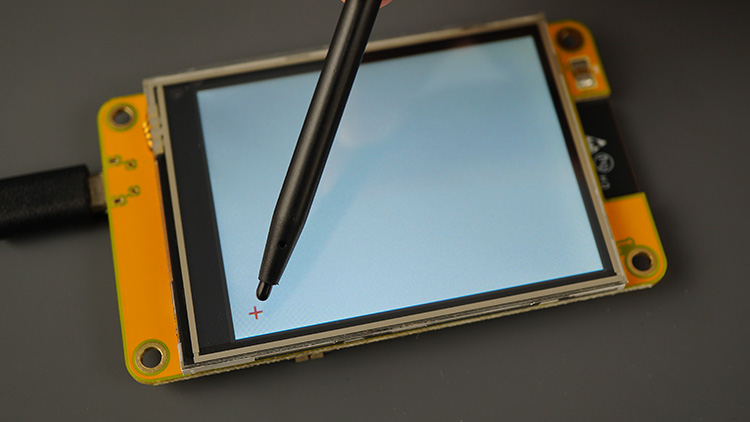
Arrêtez de taper lorsque le signe « + » disparaît et attendez qu’un autre apparaisse, pour un total de six apparitions du signe « + ».
Une fois que le croquis a traité les échantillons d’écran tactile résistif que vous avez créés avec vos tapotements, il affichera six symboles « + » là où il vous a demandé de tapoter et six « × » là où il pense que vous avez tapé, après la procédure d’étalonnage.
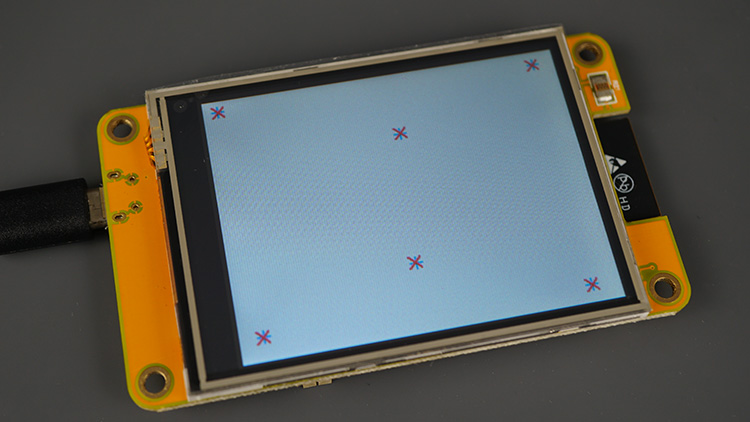
Si les croix sont bien alignées, vous pouvez continuer. Sinon, réinitialisez l’ESP32 et répétez la même procédure (essayez d’être le plus précis possible pour que la calibration se déroule avec succès).
Après cette procédure, vos valeurs de coefficient seront affichées dans le moniteur série.
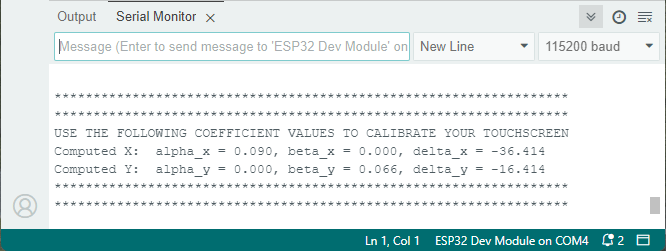
Enregistrez ces valeurs car vous en aurez besoin plus tard dans tous vos croquis utilisant l’écran tactile et qui doivent être calibrés.
Test de l’écran tactile (calibré)
Testons maintenant l’écran tactile à l’aide des équations d’étalonnage. Avant d’exécuter le code, assurez-vous de modifier le code pour utiliser les coefficients que vous avez obtenus lors du test précédent.
/*  Rui Santos & Sara Santos - Raspberryme.com
    Complete project details: https://Raspberryme.com/touchscreen-calibration/
    THIS EXAMPLE WAS TESTED WITH THE FOLLOWING HARDWARE:
    1) ESP32-2432S028R 2.8 inch 240×320 also known as the Cheap Yellow Display (CYD): https://makeradvisor.com/tools/cyd-cheap-yellow-display-esp32-2432s028r/
      SET UP INSTRUCTIONS: https://Raspberryme.com/cyd-lvgl/
    2) REGULAR ESP32 Dev Board + 2.8 inch 240x320 TFT Display: https://makeradvisor.com/tools/2-8-inch-ili9341-tft-240x320/ and https://makeradvisor.com/tools/esp32-dev-board-wi-fi-bluetooth/
      SET UP INSTRUCTIONS: https://Raspberryme.com/esp32-tft-lvgl/
    Permission is hereby granted, free of charge, to any person obtaining a copy of this software and associated documentation files. The above copyright notice and this permission notice shall be included in all copies or substantial portions of the Software.
*/

/*  Install the "lvgl" library version 9.2 by kisvegabor to interface with the TFT Display - https://lvgl.io/
    *** IMPORTANT: lv_conf.h available on the internet will probably NOT work with the examples available at Raspberryme.com ***
    *** YOU MUST USE THE lv_conf.h FILE PROVIDED IN THE LINK BELOW IN ORDER TO USE THE EXAMPLES FROM RANDOM NERD TUTORIALS ***
    FULL INSTRUCTIONS AVAILABLE ON HOW CONFIGURE THE LIBRARY: https://Raspberryme.com/cyd-lvgl/ or https://Raspberryme.com/esp32-tft-lvgl/   */
#include

/*  Install the "TFT_eSPI" library by Bodmer to interface with the TFT Display - https://github.com/Bodmer/TFT_eSPI
    *** IMPORTANT: User_Setup.h available on the internet will probably NOT work with the examples available at Raspberryme.com ***
    *** YOU MUST USE THE User_Setup.h FILE PROVIDED IN THE LINK BELOW IN ORDER TO USE THE EXAMPLES FROM RANDOM NERD TUTORIALS ***
    FULL INSTRUCTIONS AVAILABLE ON HOW CONFIGURE THE LIBRARY: https://Raspberryme.com/cyd-lvgl/ or https://Raspberryme.com/esp32-tft-lvgl/   */
#include

// Install the "XPT2046_Touchscreen" library by Paul Stoffregen to use the Touchscreen - https://github.com/PaulStoffregen/XPT2046_Touchscreen - Note: this library doesn't require further configuration
#include

// Touchscreen pins
#define XPT2046_IRQ 36   // T_IRQ
#define XPT2046_MOSI 32  // T_DIN
#define XPT2046_MISO 39  // T_OUT
#define XPT2046_CLK 25   // T_CLK
#define XPT2046_CS 33    // T_CS

SPIClass touchscreenSPI = SPIClass(VSPI);
XPT2046_Touchscreen touchscreen(XPT2046_CS, XPT2046_IRQ);

#define SCREEN_WIDTH 240
#define SCREEN_HEIGHT 320

// Touchscreen coordinates: (x, y) and pressure (z)
int x, y, z;

#define DRAW_BUF_SIZE (SCREEN_WIDTH * SCREEN_HEIGHT / 10 * (LV_COLOR_DEPTH / 8))
uint32_t draw_buf[DRAW_BUF_SIZE / 4];

// If logging is enabled, it will inform the user about what is happening in the library
void log_print(lv_log_level_t level, const char * buf) {
  LV_UNUSED(level);
  Serial.println(buf);
  Serial.flush();
}

static lv_obj_t * text_label_touch;
// Get the Touchscreen data
void touchscreen_read(lv_indev_t * indev, lv_indev_data_t * data) {
  // Checks if Touchscreen was touched, and prints X, Y and Pressure (Z)
  if(touchscreen.tirqTouched() && touchscreen.touched()) {
    // Get Touchscreen points
    TS_Point p = touchscreen.getPoint();

    // Advanced Touchscreen calibration, LEARN MORE » https://Raspberryme.com/touchscreen-calibration/
    float alpha_x, beta_x, alpha_y, beta_y, delta_x, delta_y;

    // REPLACE WITH YOUR OWN CALIBRATION VALUES » https://Raspberryme.com/touchscreen-calibration/
    alpha_x = -0.000;
    beta_x = 0.090;
    delta_x = -33.771;
    alpha_y = 0.066;
    beta_y = 0.000;
    delta_y = -14.632;

    x = alpha_y * p.x + beta_y * p.y + delta_y;
    // clamp x between 0 and SCREEN_WIDTH - 1
    x = max(0, x);
    x = min(SCREEN_WIDTH - 1, x);

    y = alpha_x * p.x + beta_x * p.y + delta_x;
    // clamp y between 0 and SCREEN_HEIGHT - 1
    y = max(0, y);
    y = min(SCREEN_HEIGHT - 1, y);

    // Basic Touchscreen calibration points with map function to the correct width and height
    //x = map(p.x, 200, 3700, 1, SCREEN_WIDTH);
    //y = map(p.y, 240, 3800, 1, SCREEN_HEIGHT);

    z = p.z;

    data->state = LV_INDEV_STATE_PRESSED;

    // Set the coordinates
    data->point.x = x;
    data->point.y = y;

    // Print Touchscreen info about X, Y and Pressure (Z) on the Serial Monitor
    Serial.print("X = ");
    Serial.print(x);
    Serial.print(" | Y = ");
    Serial.print(y);
    Serial.print(" | Pressure = ");
    Serial.print(z);
    Serial.println();
    // Print the coordinates on the screen
    String touch_data = "X = " + String(x) + "\nY = " + String(y) + "\nZ = " + String(z);
    lv_label_set_text(text_label_touch, touch_data.c_str());
  }
  else {
    data->state = LV_INDEV_STATE_RELEASED;
  }
}


void lv_create_main_gui(void) {
  // Create a text label aligned center: https://docs.lvgl.io/master/widgets/label.html
  text_label_touch = lv_label_create(lv_screen_active());
  lv_label_set_text(text_label_touch, "Touch screen to test");
  lv_obj_align(text_label_touch, LV_ALIGN_CENTER, 0, 0);

  // Set font type and size. More information: https://docs.lvgl.io/master/overview/font.html
  static lv_style_t style_text_label;
  lv_style_init(&style_text_label);
  lv_style_set_text_font(&style_text_label, &lv_font_montserrat_18);
  lv_obj_add_style(text_label_touch, &style_text_label, 0);
}

void setup() {
  String LVGL_Arduino = String("LVGL Library Version: ") + lv_version_major() + "." + lv_version_minor() + "." + lv_version_patch();
  Serial.begin(115200);
  Serial.println(LVGL_Arduino);

  // Start LVGL
  lv_init();
  // Register print function for debugging
  lv_log_register_print_cb(log_print);

  // Start the SPI for the touchscreen and init the touchscreen
  touchscreenSPI.begin(XPT2046_CLK, XPT2046_MISO, XPT2046_MOSI, XPT2046_CS);
  touchscreen.begin(touchscreenSPI);
  // Set the Touchscreen rotation in landscape mode
  // Note: in some displays, the touchscreen might be upside down, so you might need to set the rotation to 0: touchscreen.setRotation(0);
  touchscreen.setRotation(2);

  // Create a display object
  lv_display_t * disp;
  // Initialize the TFT display using the TFT_eSPI library
  disp = lv_tft_espi_create(SCREEN_WIDTH, SCREEN_HEIGHT, draw_buf, sizeof(draw_buf));
  lv_display_set_rotation(disp, LV_DISPLAY_ROTATION_270);

  // Initialize an LVGL input device object (Touchscreen)
  lv_indev_t * indev = lv_indev_create();
  lv_indev_set_type(indev, LV_INDEV_TYPE_POINTER);
  // Set the callback function to read Touchscreen input
  lv_indev_set_read_cb(indev, touchscreen_read);

  // Function to draw the GUI with switches
  lv_create_main_gui();
}

void loop() {
  lv_task_handler();  // let the GUI do its work
  lv_tick_inc(5);     // tell LVGL how much time has passed
  delay(5);           // let this time pass
}
Afficher le code brut
La fonction de lecture sur écran tactile
Fondamentalement, vous devez jeter un œil à la fonction touchscreen_read().
// Get the Touchscreen data
void touchscreen_read(lv_indev_t * indev, lv_indev_data_t * data) {

  // Checks if Touchscreen was touched, and prints X, Y and Pressure (Z)
  if(touchscreen.tirqTouched() && touchscreen.touched()) {

    // Get Touchscreen points
    TS_Point p = touchscreen.getPoint();

    // Advanced Touchscreen calibration, LEARN MORE
    float alpha_x, beta_x, alpha_y, beta_y, delta_x, delta_y;

    // REPLACE WITH YOUR OWN CALIBRATION VALUES
    alpha_x = -0.000;
    beta_x = 0.090;
    delta_x = -33.771;
    alpha_y = 0.066;
    beta_y = 0.000;
    delta_y = -14.632;

    x = alpha_y * p.x + beta_y * p.y + delta_y;
    // clamp x between 0 and SCREEN_WIDTH - 1
    x = max(0, x);
    x = min(SCREEN_WIDTH - 1, x);

    y = alpha_x * p.x + beta_x * p.y + delta_x;
    // clamp y between 0 and SCREEN_HEIGHT - 1
    y = max(0, y);
    y = min(SCREEN_HEIGHT - 1, y);

    // Basic Touchscreen calibration points with map function to the correct width and height
    //x = map(p.x, 200, 3700, 1, SCREEN_WIDTH);
    //y = map(p.y, 240, 3800, 1, SCREEN_HEIGHT);

    z = p.z;

    data->state = LV_INDEV_STATE_PRESSED;

    // Set the coordinates
    data->point.x = x;
    data->point.y = y;

    // Print Touchscreen info about X, Y and Pressure (Z) on the Serial Monitor
    Serial.print("X = ");
    Serial.print(x);
    Serial.print(" | Y = ");
    Serial.print(y);
    Serial.print(" | Pressure = ");
    Serial.print(z);
    Serial.println();

   //Print the coordinates on the screen (delete when using with other examples)
    String touch_data = "X = " + String(x) + "nY = " + String(y) + "nZ = " + String(z);
    lv_label_set_text(text_label_touch, touch_data.c_str());

  }
  else {
    data->state = LV_INDEV_STATE_RELEASED;
  }
}
Insérez vos valeurs de coefficient
Vous devez insérer vos valeurs de coefficient dans les variables suivantes, avant de télécharger le code sur votre tableau.
// REPLACE WITH YOUR OWN CALIBRATION VALUES »
alpha_x = -0.000;
beta_x = 0.090;
delta_x = -33.771;
alpha_y = 0.066;
beta_y = 0.000;
delta_y = -14.632;
Ensuite, le code utilise les équations décrites dans l’article pour calibrer l’écran tactile.
x = alpha_y * p.x + beta_y * p.y + delta_y;
// clamp x between 0 and SCREEN_WIDTH - 1
x = max(0, x);
x = min(SCREEN_WIDTH - 1, x);

y = alpha_x * p.x + beta_x * p.y + delta_x;
// clamp y between 0 and SCREEN_HEIGHT - 1
y = max(0, y);
y = min(SCREEN_HEIGHT - 1, y);
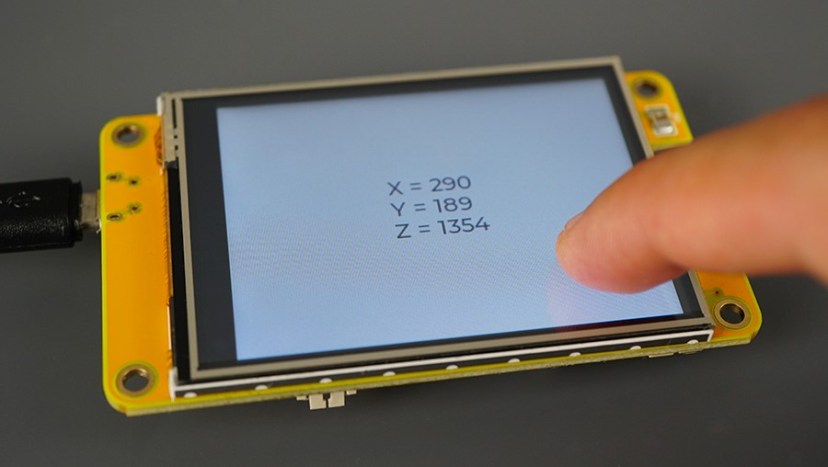
Maintenant, vous devriez obtenir des valeurs X et Y calibrées lorsque vous touchez l’écran.
En résumé…
Utilisez cette fonction touchscreen_read() dans tous vos projets avec vos propres valeurs de coefficients afin de toujours disposer d’un écran tactile calibré utilisant des valeurs spécifiques à votre carte.
// Get the Touchscreen data
void touchscreen_read(lv_indev_t * indev, lv_indev_data_t * data) {
  // Checks if Touchscreen was touched, and prints X, Y and Pressure (Z)
  if(touchscreen.tirqTouched() && touchscreen.touched()) {
    // Get Touchscreen points
    TS_Point p = touchscreen.getPoint();
    // Advanced Touchscreen calibration
    float alpha_x, beta_x, alpha_y, beta_y, delta_x, delta_y;
    // REPLACE WITH YOUR OWN CALIBRATION VALUES
    alpha_x = -0.000;
    beta_x = 0.090;
    delta_x = -33.771;
    alpha_y = 0.066;
    beta_y = 0.000;
    delta_y = -14.632;

    x = alpha_y * p.x + beta_y * p.y + delta_y;
    // clamp x between 0 and SCREEN_WIDTH - 1
    x = max(0, x);
    x = min(SCREEN_WIDTH - 1, x);
    y = alpha_x * p.x + beta_x * p.y + delta_x;
    // clamp y between 0 and SCREEN_HEIGHT - 1
    y = max(0, y);
    y = min(SCREEN_HEIGHT - 1, y);

    z = p.z;

    data->state = LV_INDEV_STATE_PRESSED;
    // Set the coordinates
    data->point.x = x;
    data->point.y = y;

    // Print Touchscreen info about X, Y and Pressure (Z) on the Serial Monitor
    Serial.print("X = ");
    Serial.print(x);
    Serial.print(" | Y = ");
    Serial.print(y);
    Serial.print(" | Pressure = ");
    Serial.print(z);
    Serial.println();
  }
  else {
    data->state = LV_INDEV_STATE_RELEASED;
  }
}
Aller plus loin – Utiliser la bibliothèque de préférences
Si vous n’avez pas à vous soucier d’écrire vos valeurs de coefficient dans chaque esquisse, vous pouvez enregistrer les valeurs sur l’ESP32 de manière permanente à l’aide de la bibliothèque Préférences. Ensuite, sur chaque exemple, chargez les valeurs des Préférences au début du code. L’exemple développé par Robert Fleming utilise cette approche, vous pouvez le consulter ici.
Conclusion
Nous espérons que vous avez trouvé cet article utile pour calibrer votre écran tactile à affichage jaune bon marché ESP32. La même technique peut être appliquée à n’importe quel autre écran tactile avec quelques modifications dans le code.
Un merci spécial à Robert Fleming pour avoir fourni le croquis d’étalonnage original.
Plus de tutoriels utilisant l’écran jaune bon marché ESP32 :
Pour en savoir plus sur la création d’interfaces graphiques à l’aide de l’ESP32, consultez notre eBook :
Cette vidéo vous emmène dans l’histoire de Raspberry Pi :